
Introduce
Managing multiple telecom connections, checking real-time data consumption, and modifying active mobile packages manually can quickly become cumbersome if you rely on traditional USSD codes or customer service hotlines. For mobile users in Sri Lanka, the MyDialog application serves as an essential digital self-care portal designed to streamline account supervision.
This deep guide walks through the exact mechanics of registering your account, linking additional mobile numbers via a unified Dialog ID, and modifying or activating packages directly from your smartphone.
Understanding the Ecosystem: Why Centralize Your Connections?
Before diving into the technical steps, it helps to understand how Dialog Axiata structures its account management architecture. The MyDialog app allows users to link up to 20 distinct connections under a single profile. These can span mobile prepaid lines, postpaid numbers, Home Broadband units, and Dialog Television accounts.
By unifying these services under a single authentication framework known as a Dialog ID, you eliminate the need to memorize separate account numbers, track multiple billing cycles via SMS, or log in and out of different profiles. Any connection successfully tied to your Dialog ID on the web portal automatically reflects within your mobile application interface.
Step-by-Step Guide: Downloading and Initializing the MyDialog App
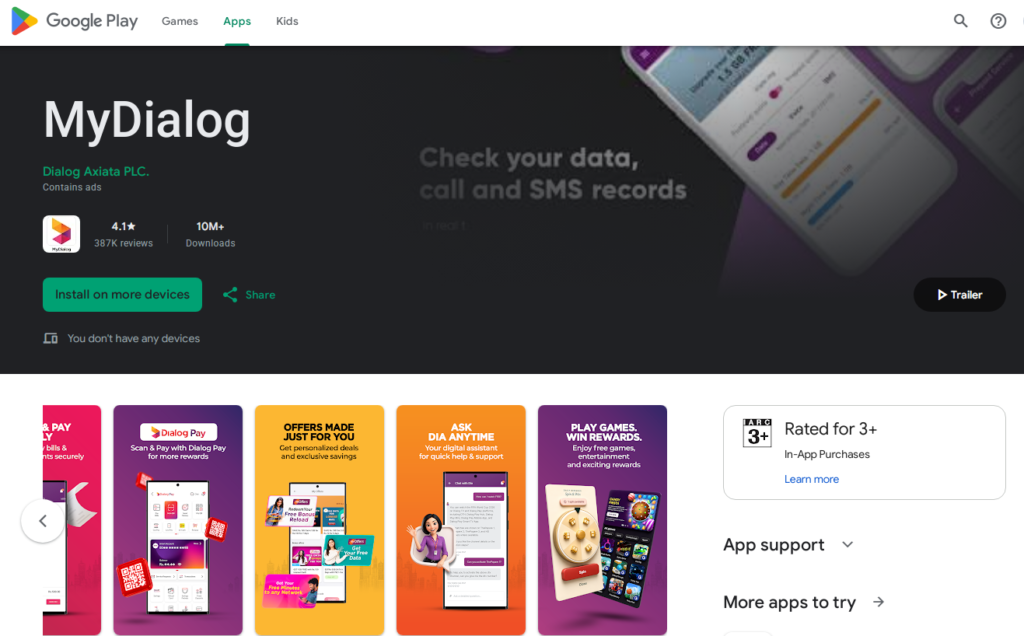
If you have not yet installed or set up the application on your mobile device, follow these initial steps to establish your secure base account:
- Download the Application: Navigate to the Google Play Store (for Android devices), Apple App Store (for iOS devices), or Huawei AppGallery, search for MyDialog, and download the official self-care application published by Dialog Axiata PLC.
- Connect via Mobile Data or Wi-Fi: Open the application. Note that browsing within the MyDialog app is zero-rated if you are actively using Dialog mobile data, meaning it will not deplete your active data quota.
- Register Your Primary Number: Enter your primary Dialog mobile number when prompted. The system will send an automated One-Time Password (OTP) via SMS to verify ownership. Input this code to complete your initial registration.
- Select Your Preferred Language: The app supports multiple languages including English, Sinhala, Tamil, and Chinese, allowing you to configure the interface according to your preference.
How to Add Secondary Mobile Numbers to Your Dashboard
Managing a family member’s line or adding a secondary business number to your primary device requires linking the connection explicitly to your profile. The platform accommodates up to 20 unique connections, which can be integrated smoothly using the account management menu.
- Navigate to Account Settings: Open the MyDialog app dashboard and locate the account switcher or profile management section, usually accessible by tapping on your profile avatar or the active mobile number displayed at the top of the home screen.
- Select the “Add Connection” Option: Look for the plus (+) icon or the “Add New Connection” / “Manage Connections” tab.
- Enter Connection Details: Input the target Dialog mobile number you wish to add to your dashboard.
- Authorize the Link via OTP: For security reasons, Dialog requires verification from the target number. An OTP will be dispatched via SMS to the mobile number you are attempting to add. Enter this verification code into your primary app interface.
Once verified, the secondary number will appear in your drop-down account switcher, giving you instant visibility over its remaining balance, data bundles, and active subscriptions.
Example Scenario: If you manage a personal prepaid smartphone and a separate home broadband or secondary voice line for a family member, linking both numbers allows you to check balances and reload funds for both lines from a single screen without swapping SIM cards or logging out.
Comprehensive Guide to Managing and Activating Packages
Once your mobile numbers are linked to the dashboard, the MyDialog app grants you granular control over your active voice, text, and data packages. Rather than navigating complex USSD menus like #678#, the visual interface displays exact quota breakdowns, expiration dates, and custom bundle creators.
1. Exploring and Activating Standard Data and Voice Bundles
- Access the Packages Tab: From the app home screen, tap on the Packages, Explore, or Data/Voice Plans section. Here, you will find categorized listings ranging from Anytime Data quotas, social media packs, and video streaming bundles to unlimited voice packages.
- Select Your Desired Bundle: Review the validity period, pricing in Sri Lankan Rupees (LKR), and volume allocations. For instance, you might choose a monthly work-and-learn bundle, a night-time data extension, or a specialized weekend reload pack.
- Confirm Activation: Tap the Activate or Subscribe button. The system will prompt you to confirm whether you wish to deduct the package fee directly from your main mobile balance (for prepaid users) or add it to your next recurring monthly bill (for postpaid users).
2. Utilizing the “My Plan” Custom Creator Feature
If pre-packaged bundles do not match your exact usage patterns, the MyDialog app features a custom builder utility:
- Select the My Plan or Create Your Own Plan option within the package menu.
- Use the interactive sliders to allocate specific amounts of anytime data, work/study quotas, voice minutes, and SMS counts based on your budget.
- The app dynamically calculates the total cost in real time. Once satisfied, click confirm to deploy your bespoke monthly package instantly.
3. Managing Shareable Data and Credit Transfers
If you operate a postpaid Power Plan or family package, you can distribute data resources across multiple connected numbers:
- Tap on the Shareable Data icon on the app home screen.
- Select the Add Member option and choose from your linked numbers or search for a family member’s Dialog mobile number.
- Define the specific data quota limit you wish to allocate to that member, and confirm the action. You can manage up to 15 members under certain shareable structures.
- Similarly, use the Share Credit feature to transfer emergency reload credit to friends or family members directly through the app interface.
Troubleshooting Common Issues When Adding Numbers
While the digital onboarding process is designed to be seamless, users occasionally run into minor roadblocks. Keeping these troubleshooting tips in mind ensures a smooth experience:
- OTP Delays: If the verification code SMS does not arrive immediately when adding a secondary number, ensure that the target SIM card is active inside a handset with network signal to receive incoming messages.
- Connection Limit Reached: Remember that the system restricts a single profile to a maximum of 20 connected accounts. If you manage numerous corporate lines and hit this threshold, you will need to unlink older or inactive numbers before adding new ones.
- Data Connectivity Check: Ensure your device has an active internet connection (either mobile data or stable Wi-Fi) when attempting to link new accounts, as real-time server verification requires active data packets.
Final Thoughts
Centralizing your mobile portfolio through the MyDialog application transforms how you interact with your telecommunications services. By taking a few moments to link your secondary numbers, structure custom data packages, and leverage digital payment options, you eliminate unnecessary administrative friction and retain complete oversight of your mobile expenses.
Quick Summary
The MyDialog app functions as a centralized self-care portal enabling users in Sri Lanka to link up to 20 distinct connections—including mobile prepaid, postpaid, Home Broadband, and Dialog TV accounts—under a single Dialog ID. By downloading the official application, authenticating your primary number via SMS OTP, and navigating through the account settings menu, you can easily add secondary lines, track data/voice quotas in real time.
Activate custom bundles using the “My Plan” feature, and distribute shareable data across family members without relying on traditional USSD codes.
Frequently Asked Questions
You can link a maximum of 20 distinct connections—spanning mobile prepaid lines, postpaid numbers, Home Broadband, and Dialog TV accounts—under a single profile.
Browsing within the MyDialog app is zero-rated when you are actively using Dialog mobile data, meaning it will not deplete your active data quota.
Ensure that the target SIM card is active inside a handset with sufficient network signal to receive incoming text messages, and check that your device has an active internet connection to communicate with the verification servers.
Read more related articles:
Top 5 Dialog Data Packages in Sri Lanka 2026
Referance
Official MyDialog App Portal (Dialog Axiata): MyDialog App Support Page
Google Play Store Listing: MyDialog on Google Play
Apple App Store Listing: MyDialog on Apple App Store