
Introducing
In this article, I will discuss all the details fetaurs about Dialog 4G Home Brodband Data Balance and other related details.
If you use Dialog 4G Home Broadband in Sri Lanka, keeping an eye on your remaining data is one of the easiest ways to avoid unexpected interruptions, slowdowns, or additional usage charges. Whether you use your connection for YouTube, Netflix, social media, online classes, remote work, gaming, downloads, or general browsing, your monthly data allowance can disappear surprisingly quickly. Fortunately, Dialog provides several ways to monitor your Home Broadband connection, including the MyDialog App, USSD, Dialog’s website, and DIA digital assistant.
The most convenient option for many users is the MyDialog App, because it allows you to see information about your connection from your phone without having to access the router itself. Dialog also states that its Wi-Fi service can be managed through the MyDialog App, Dialog.lk, USSD #678#, and the DIA WhatsApp service. Available features include data usage monitoring, package information, usage history, bills, payments, and available data extensions.
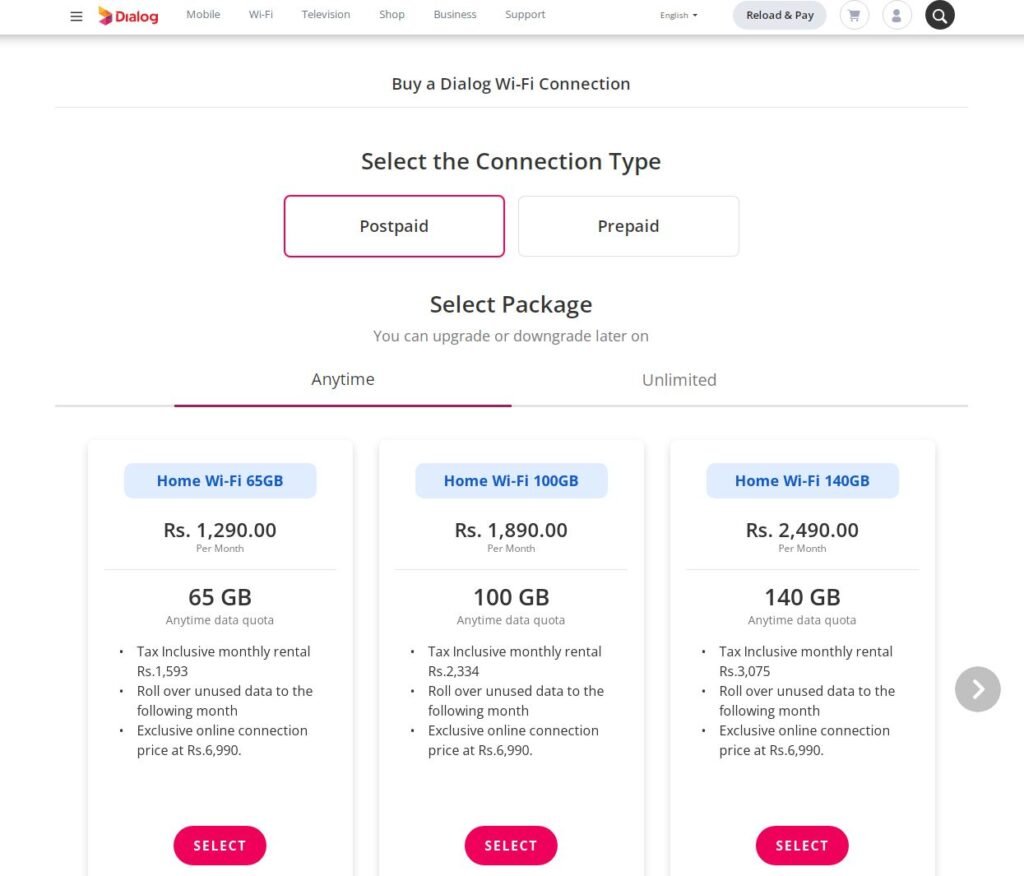
This guide explains the different ways you can check your Dialog 4G Home Broadband data balance, what to do if you cannot see your connection, and how to understand your usage. Because Dialog can update its menus and digital services, the instructions below focus on the methods currently documented by Dialog rather than relying on old balance-check codes that may no longer work.
Why Checking Your Dialog Home Broadband Data Balance Matters
Imagine having a water tank at home but never checking how much water remains. You might use it normally for several days and suddenly discover that the tank is almost empty when you need it most. Your broadband data allowance works in a similar way. Video streaming, operating-system updates, cloud backups, large downloads, social media videos, and multiple connected devices can consume data much faster than ordinary web browsing. Checking your balance regularly gives you a better idea of how quickly your connection is being used.
Dialog provides data-usage monitoring as part of its Wi-Fi management features. According to Dialog, customers can use the MyDialog App to monitor data usage, check package details, view available data extensions, and access usage history. Dialog also lists the website, USSD #678#, and its DIA WhatsApp service as ways to manage a Dialog Wi-Fi connection.
This is particularly useful if several people share one 4G Home Broadband connection. One person might be watching high-resolution videos while another is attending a Zoom or Teams meeting and another is downloading large files. From the perspective of the router, all of that activity contributes to overall usage. A balance check therefore gives you a simple snapshot of how much of your available allowance has already been consumed and whether you need to change your usage habits or consider an additional data option.
What You Can See When Checking Your Usage
The exact information displayed can depend on your Dialog package and account type, but Dialog’s digital services are designed to provide account and usage information. Its MyDialog information states that customers can check account balances and remaining bonuses from the home screen, while account activity and usage information can also be accessed there. Dialog notes that detailed usage information is available when the connection is registered under the user’s NIC.
For Home Broadband customers, the useful information may include your active package, available data, data usage, usage history, billing information, and available data extensions. These details can help you understand not just how much data remains, but also how you are using the connection.
For example, suppose your package has a substantial allowance but your remaining balance has dropped considerably after only a few days. That could indicate heavy video streaming, large downloads, automatic device updates, or another device consuming bandwidth in the background. Checking usage before assuming that the network itself is slow can save you a lot of unnecessary troubleshooting.
How to Check Dialog 4G Home Broadband Data Balance Using MyDialog
The MyDialog App is generally the easiest method for managing a Dialog Home Broadband connection. Dialog specifically identifies the MyDialog App as a management channel for Dialog Wi-Fi and lists data usage monitoring among its features.
If you already have the app installed and your Home Broadband connection is linked to your account, open the application and sign in. Look for your Home Broadband or Wi-Fi connection on the account dashboard. Depending on the current app interface and your package, the relevant balance or usage information should be available through the connection or account details.
The advantage of using the app is that you do not have to remember a long sequence of USSD menu options. Instead, the application provides a graphical account-management interface. It can also be useful when you want to do more than simply check the balance, because Dialog says the app supports features such as data usage monitoring, package details, available data extensions, usage history, bill information, and payment options.
Step-by-Step MyDialog Method
Follow these general steps:
- Open the MyDialog App on your smartphone.
- Sign in to the Dialog account associated with your Home Broadband connection.
- Locate your Home Broadband/Wi-Fi connection.
- Open the relevant account or package details.
- Look for data usage, remaining data, balance, or usage history.
- Review the information displayed for your current package.
The exact wording of buttons can change when Dialog updates the application, so do not worry if your screen looks slightly different from another user’s phone. The important thing is to open the Home Broadband connection rather than looking only at your mobile SIM balance.
If you manage several Dialog connections under one account, pay particular attention to the connection number before interpreting the displayed data. Selecting the wrong service can make it appear as though your broadband balance is different from what you expected.
What to Do If Your Home Broadband Connection Is Missing
If your Home Broadband connection does not appear inside MyDialog, first make sure you are signed into the correct account. The number registered with your MyDialog account and the number associated with your broadband service need to be correctly connected.
You can also try refreshing the application, signing out and signing in again, or checking whether an app update is available. If the connection is still unavailable, Dialog provides other management channels, including #678#, Dialog.lk, and DIA.
For account-specific problems, contacting Dialog support is the safest option because customer-service staff can check the actual status of your connection. Avoid relying on unofficial websites that ask you to provide your Dialog password, OTP, NIC details, or other sensitive account information.
How to Check Dialog Home Broadband Data Balance Using USSD
If you prefer not to use an application, Dialog provides a USSD-based method for Home Broadband management. This is especially useful when you have limited smartphone access or simply prefer a quick menu-based service.
Dialog’s official self-help documentation states that customers can dial #678# to access functions related to Mobile and Home Broadband services. For Home Broadband, the menu provides options including data extensions, checking the bill, package changes, data usage, and asking for credit.
The precise menu structure can differ according to the type of Dialog connection you are using. Dialog’s current self-help page specifically documents Home Broadband under the #678# menu, so this is a more reliable starting point than older websites that publish standalone codes without explaining which service they apply to.
Using the #678# Menu
To begin, use a Dialog mobile connection and dial:
#678#
A USSD menu should appear. Look for the Home Broadband option. Dialog’s current documentation identifies Home Broadband as an option for accessing functions such as data extensions, checking bills, package changes, and data usage.
Select the relevant Home Broadband option and follow the instructions on screen. If the system asks for your Home Broadband number, enter the number associated with your connection. Then select the balance or usage-related service you need.
The benefit of this method is simplicity. You do not need mobile data to open an app, and you do not need to connect your phone to the Home Broadband Wi-Fi network. The USSD request communicates through Dialog’s mobile network and provides account-management options.
Selecting the Home Broadband Option
Dialog’s current self-help page documents the Home Broadband route within the #678# menu. The menu can also contain options for mobile data plans and other services, so make sure you select Home Broadband rather than a mobile data option if you are trying to check the balance of your 4G Home Broadband service.
This distinction is important because mobile data balance and Home Broadband data balance are not necessarily the same thing. If you have both a Dialog mobile SIM and a Dialog Home Broadband connection, checking the mobile account may show a completely different package.
When in doubt, look for wording related to Home Broadband, Wi-Fi, data usage, package details, or your Home Broadband number.
Check Dialog 4G Data Usage Through the Dialog Website
Another option is to manage your connection through Dialog.lk. Dialog officially lists its website alongside MyDialog, USSD, and DIA as channels for managing a Dialog Wi-Fi connection.
This method can be useful if you are already using a desktop computer or laptop. Instead of installing an application, you can access Dialog’s online services and manage your account from a browser.
The website can also be useful when you want to investigate available packages or data add-ons. Dialog’s current Home Broadband pages show package information and account-management options, while its data add-on pages identify MyDialog as a method for activation and data-usage checking.
Managing Your Connection Online
When using Dialog’s website, always make sure that you are accessing the official dialog.lk domain. Avoid entering account credentials into third-party websites that claim to provide a Dialog balance checker.
After signing into the appropriate account area, locate your Home Broadband service and review the available usage information. The exact layout can change over time, so focus on finding the section associated with your broadband connection, package, or data usage.
Using the official website also makes sense when you need to perform additional account actions after checking your balance. For example, you may discover that your remaining allowance is lower than expected and want to investigate available extensions or package options.
Check Dialog Broadband Data Through DIA
Dialog has also expanded its digital customer-support options through DIA, its intelligent assistant. In August 2026, Dialog announced enhanced AI-powered DIA capabilities through WhatsApp and the MyDialog App. Dialog says customers can use DIA for Home Broadband and other services, including checking their current package, account balance and data balances and adding data to their package.
Dialog says customers can connect with DIA through WhatsApp using 0777678678 or access DIA through the MyDialog App. The service is designed to provide digital self-service support around the clock.
Using DIA Through WhatsApp
If you prefer WhatsApp-based customer support, DIA can be a convenient alternative to navigating several account pages. Open WhatsApp and use Dialog’s official DIA channel. Follow the prompts provided by the assistant and select the service related to your Home Broadband account.
Because digital assistants can change their menu options as new capabilities are introduced, follow the current prompts presented by DIA rather than relying on screenshots or instructions from an old article.
This method is particularly useful if your question goes beyond a simple balance check. Dialog says DIA can also handle several service requests, including package changes, support requests, reconnection-related requests, and data-related account management.
How to Check Dialog Data Balance Without the Router
One common misconception is that you must connect your phone to the Dialog 4G router before you can check the remaining data. In reality, Dialog provides account-based management channels that allow customers to check and manage Home Broadband services without physically accessing the router.
The MyDialog App, Dialog website, #678# USSD service, and DIA provide different ways to manage your connection. Dialog specifically lists data usage monitoring as a feature of its Wi-Fi management services.
This is useful when the router is in another room, when you are away from home, or when the router is switched off. The balance is associated with your Dialog service account rather than being something that exists only inside the physical router.
Why the Router Does Not Need to Be Connected
Your router is primarily the device that provides internet connectivity to your household devices. Account information such as your package and data allowance is maintained by Dialog’s network and customer-account systems.
Therefore, you can use a mobile connection to access MyDialog or USSD and check the associated Home Broadband service. This separation between the router and account-management system is what makes remote management possible.
It is still important to select the correct Home Broadband connection if your Dialog account contains multiple services.
Dialog Home Broadband Data Balance vs Data Usage
The terms data balance and data usage are closely related, but they are not exactly the same thing. Data usage tells you how much data has been consumed, while the remaining balance tells you how much of the applicable allowance is still available.
For example, if a package starts with a certain data quota and you consume part of it, the usage figure increases while the remaining balance decreases. Looking at both pieces of information gives you a better understanding of your internet consumption.
Dialog’s Wi-Fi management information specifically includes both data usage monitoring and usage history among the features available through its digital services.
Understanding Remaining Data and Usage History
Usage history can be more useful than a single balance figure because it helps you identify patterns. If your balance decreases dramatically after a particular day, think about what happened on that day. Perhaps you watched several hours of HD video, downloaded a large game, installed operating-system updates, or connected a new smart TV.
If multiple household members use the same connection, identifying the cause can be harder. In that situation, checking your balance regularly and monitoring the devices connected to the router can help you understand where the data is going.
Remember that internet-connected devices can consume data even when you are not actively browsing. Automatic updates, cloud synchronization, video autoplay, app updates, and backup services can all contribute to usage.
What Happens When Your Dialog Data Balance Runs Out?
What happens after your allowance is exhausted depends on the specific Dialog package and account type. You should therefore avoid assuming that every Home Broadband plan behaves in exactly the same way.
Some Dialog packages have particular rules about additional usage, add-ons, or package benefits. Dialog’s current package information demonstrates that different products can have different conditions, validity periods, and usage rules. For example, Dialog’s published broadband information includes packages with anytime quotas, rollover features, and other benefits.
If your remaining data is getting low, checking the available data extensions or add-on options can be more sensible than waiting until the allowance is completely consumed. Dialog’s USSD documentation specifically includes data extensions within its Home Broadband options.
Always check the terms and price of the option displayed for your particular account before activating an add-on.
How to Reduce Dialog 4G Home Broadband Data Consumption
Checking your balance tells you what is happening; controlling consumption helps you decide what to do about it. If your data disappears faster than expected, start by examining video quality. Streaming video at high resolution can consume substantially more data than standard-definition playback, so lowering quality when appropriate can make a noticeable difference.
Next, check automatic updates and cloud backups on computers, phones, televisions, and other connected devices. A single large operating-system update or game download can consume a significant portion of a broadband allowance. If several devices share your connection, make sure everyone understands that large downloads and high-resolution streaming affect the same overall connection.
You should also secure your Wi-Fi network. If an unauthorized person has access to your router, they may consume your data without you realizing it. Use a strong Wi-Fi password and review the devices connected to the router when your router’s administration interface provides that information.
Finally, make checking your balance a routine rather than something you do only when the internet stops working. A quick check every few days can reveal unusual consumption early and give you time to adjust your usage or consider an appropriate data extension.
Common Problems When Checking Dialog Data Balance
One of the most common problems is checking the wrong Dialog service. If you have both a mobile connection and a Home Broadband connection, make sure you are viewing the broadband service rather than the mobile data account.
Another issue can occur when an account has not been correctly linked to the MyDialog App. If the Home Broadband connection does not appear, verify that you are using the correct account and then try another official management channel such as #678# or Dialog’s website.
USSD menus can also change. If you find an old website telling you to dial a particular standalone balance code and it does not work, use Dialog’s current official #678# self-help menu instead. Dialog’s current documentation specifically identifies #678# as the gateway for Home Broadband functions, including data usage and data extensions.
If you still cannot obtain your balance, contact Dialog’s official support. Dialog’s Wi-Fi page provides its support channels and lists a 24/7 hotline at 117 100 100.
check the given below video for get more idea.
Conclusion
Checking your Dialog 4G Home Broadband data balance does not have to be complicated. The most convenient approach is usually the MyDialog App, where Dialog provides account and usage-management features. You can also use #678#, Dialog’s website, or the newer DIA digital assistant depending on what is most convenient for you.
For a quick USSD method, dial #678# and select the Home Broadband option, then follow the instructions for data usage or related services. Dialog’s official documentation confirms that the Home Broadband section provides access to functions including data extensions, data usage, package changes, and bill-related services.
If you regularly monitor your balance, you can spot heavy usage before your data allowance becomes a problem. Whether the cause is video streaming, automatic updates, cloud backups, downloads, or multiple connected devices, knowing your usage gives you the information you need to manage your connection more effectively.
Read more related articles.
FAQs About Dialog 4G Home Broadband Data Balance
Dialog currently provides Home Broadband-related services through #678#. After dialing the code, select the Home Broadband option and follow the available menu instructions for data usage, data extensions, billing, or other services.
Yes. Dialog identifies the MyDialog App as a management channel for Dialog Wi-Fi and lists data usage monitoring, package details, available data extensions, and usage history among its features.
Yes. Account-management options such as the MyDialog App and #678# do not require you to physically connect your phone to the Home Broadband router. You need access to the appropriate Dialog account or mobile service used to manage the connection.
Dialog’s current DIA service is available through WhatsApp, and Dialog says DIA can handle account and data-balance queries for Home Broadband customers. Dialog announced the enhanced DIA service in August 2026 and identifies 0777678678 as its WhatsApp number.
First, confirm that you are checking the correct Home Broadband connection rather than a Dialog mobile account. Then compare the information across an official channel such as MyDialog, #678#, or Dialog’s website. If the discrepancy remains, contact Dialog customer support so the account can be checked directly.
Click Here for the official website.